Embarking on a Dynamics 365 Finance and Operations (D365 F&O) implementation journey involves significant efforts in data migration to ensure a seamless transition to the Go-Live phase. One of the challenges encountered in this process is the complexity arising from the need to work around standard designs on data entities within the system. In this blog post, we will explore several scenarios where consultants must employ workarounds to achieve the desired results.
The Data Management Framework
The Data Management Framework (DMF) within D365 F&O serves as an integrated service dedicated to the import, export, and manipulation of data residing in the system. This service provides users with various means of interacting with data:
- Data Projects – Data projects are created through the Data management workspace in D365 F&O. Here the user can create import and export projects, each project having the ability to have several entities within it. Within this project, it is important to note that before data hits the actual tables which stores the data in D365 F&O, this data is populated within a staging table which prepares and validates the data.
- OData – Some entities can be also exposed as endpoints where data can be consumed from using the OData protocol. When this is configured, data can be acquired from this entity using the environment OData feed which is accessible through ‘{environment_url}/data’. These data entities are also used in the out of the box Open in excel functionalities. The entities exposed as OData endpoints support a range of functionalities from the available CRUD operations.
Complex import scenarios
The most complex scenarios when working with data entities are scenarios where data needs to be pushed to D365 F&O. During data migration scenarios, this is most commonly done using Data projects.
When importing data, consultants can find themselves with the requirement to populate data within fields which are initially configured to be non-editable. The editability of a field is controlled through the Data entity field properties as well as the properties of the fields in the underlying tables where the data will be eventually stored. In order to work around this restriction, there is a functionality within the data entity structure that can be utilized.
The first step is to navigate the to the Data entities tile in the Data management workspace. Once the entity required is identified, press on Modify target mapping in the Action pane.

Withing the mapping, we can see that the last field in the grid is called Call validate Field method. This checkbox controls whether field validation is triggered when the entity is used in a data project. Once this is turned off, all validation related to the field is disabled and therefore, previously non editable fields will now allow for data to be inserted or updated within them.
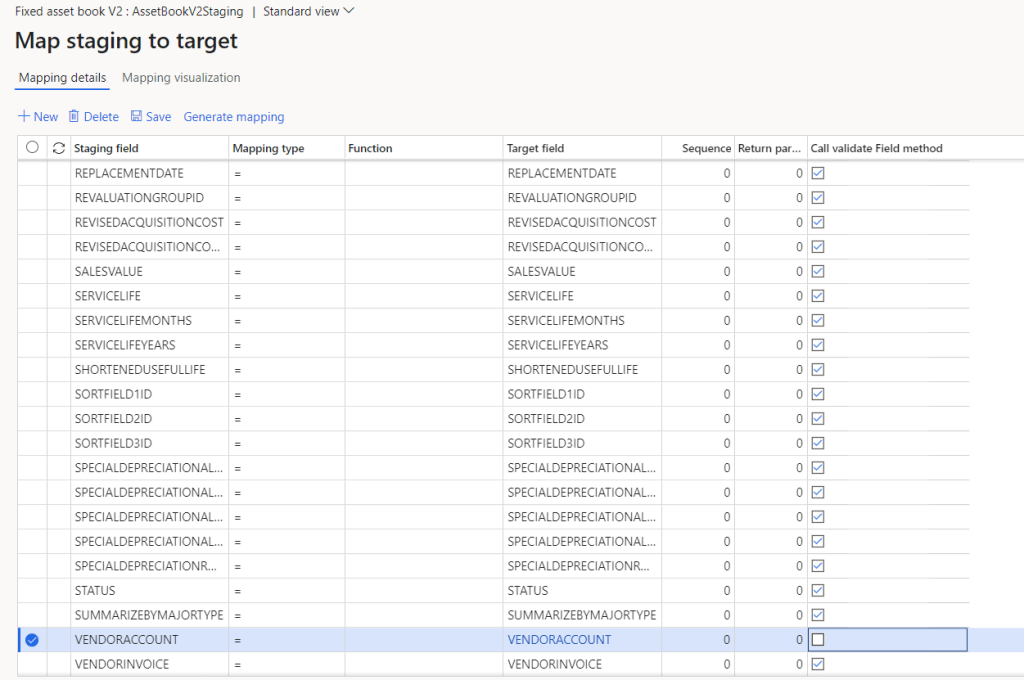
It is important to note that when adding this entity to an Import project, non-editable fields are not mapped automatically. In this case a manual mapping is required.
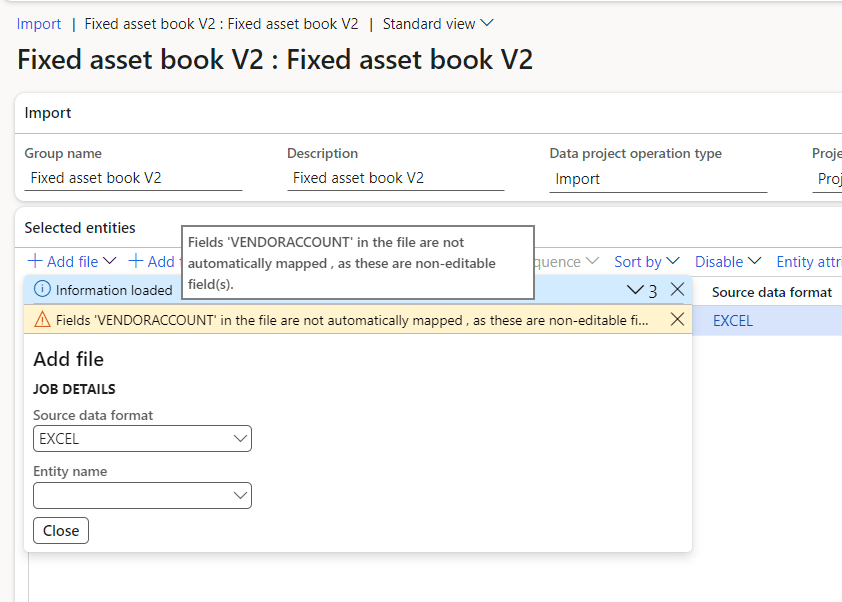
To create the mapping manually, press on the mapping icon in the import project to view all the field mappings between the file used for import and the staging table fields:
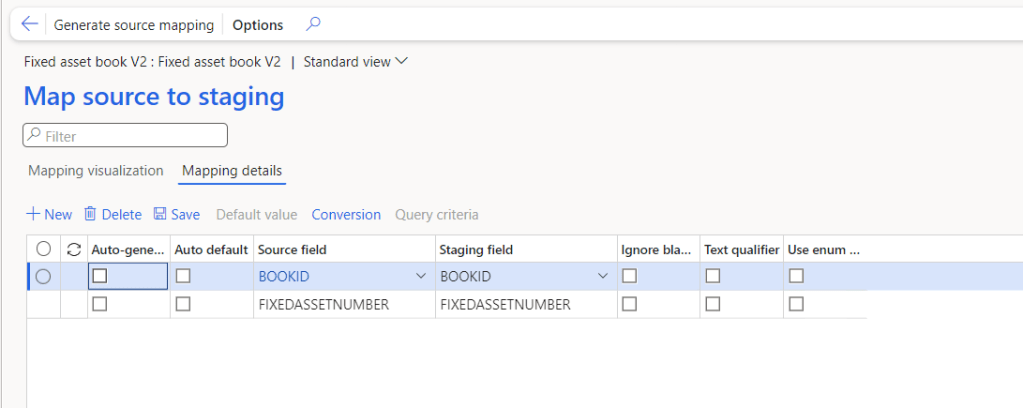
To create a mapping between the fields, press on the New button and select the applicable fields in the drop-down menus:
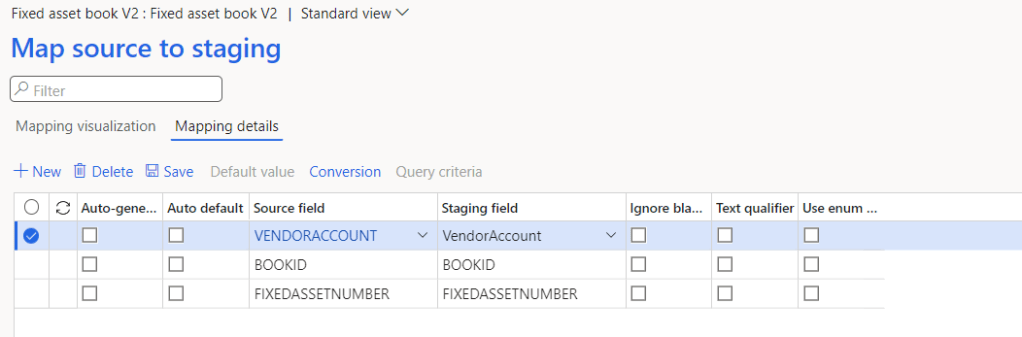
Finally, go back to the import project and press on Import now. After checking the expected inserted or updated records, we can now see that there is data populated within the previously non-editable fields.
Set-based data entities
Some out of the box entities are designed in a way to work with set-based operations. Set-based data entities offer better performance when mass inserts of data is required but, do not allow for there to be update operations to be performed using them.
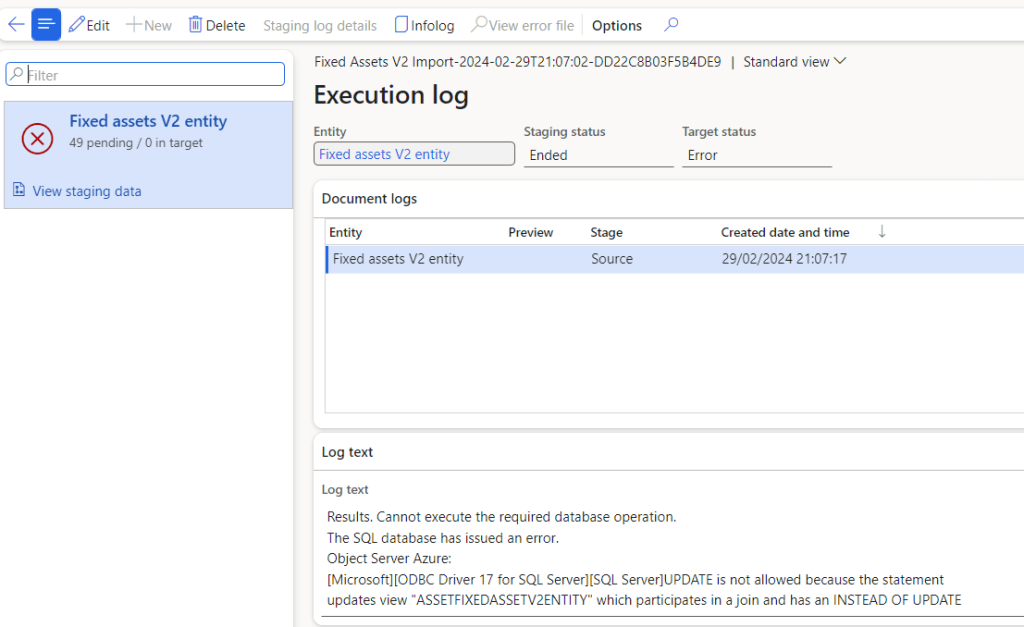
Thankfully, this set-based functionality can also be turned on using a checkbox in the Data entities screen.
Firstly, navigate and click on the Data entities tile which can be found in the Data management workspace. Once the applicable entity is found, we can see that there is a checkbox in the entity grid called Set based processing.

In order to turn this off, press on the edit button and disable this functionality. Using this approach, update operations can now be utilised using the chosen entity.
In conclusion, navigating the intricacies of data entities in D365 F&O, particularly when dealing with scenarios that involve pushing data into the system, is a critical aspect of successful implementations. The utilization of Data projects emerges as a common and effective method during data migration scenarios. By understanding the complexities involved, leveraging workarounds, and embracing the various functionalities within the Data Management Framework, consultants can ensure a smoother and more efficient data migration process
 d365techtips
Leave a comment