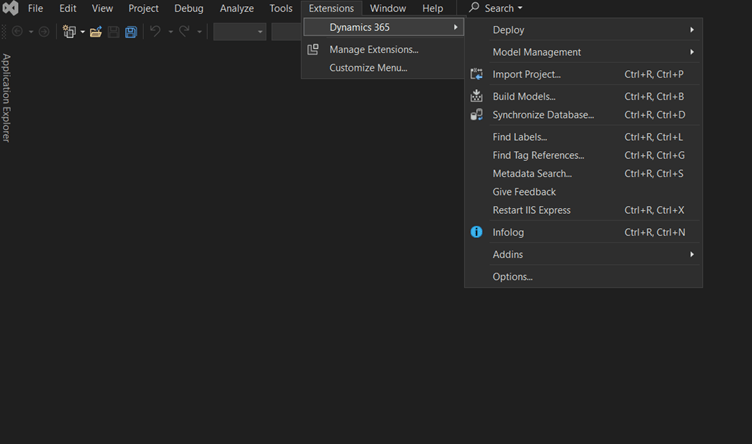
As has been announced by Microsoft a while ago, Visual Studio 2022 (VS) is officially supported for development for D365 F&O. Even though this is supported, the experience for installing this can be a bit frustrating as the process is not fully documented. From my experience, setup has to be done by finding specific pieces of information in different blogs and community posts. This blog post will serve as one source for the setup required to manually install VS and use it for D365 F&O development.
Pre-requisites:
- In order to use this extension, the version of F&O installed has to be at a minimum 10.0.37.
- VS 2022 has to be installed on the development machine. This can be installed from here.
The suggested approach for installing this extension in VS is as follows:
- Install VS 2022 in your development environment.
- Upgrade your environment to either a Platform Quality Update (PQU) version of F&O 10.0.37 or directly to 10.0.38 and the D365 F&O Extension should be automatically installed in your environment.
The scenario I encountered, was to install the D365 F&O VS 2022 extension on a clean version of 10.0.37. The following is a list of steps that I took in order for this to be installed and work properly on my development machine:
- Install VS 2022. Again, the installer can be downloaded from here.
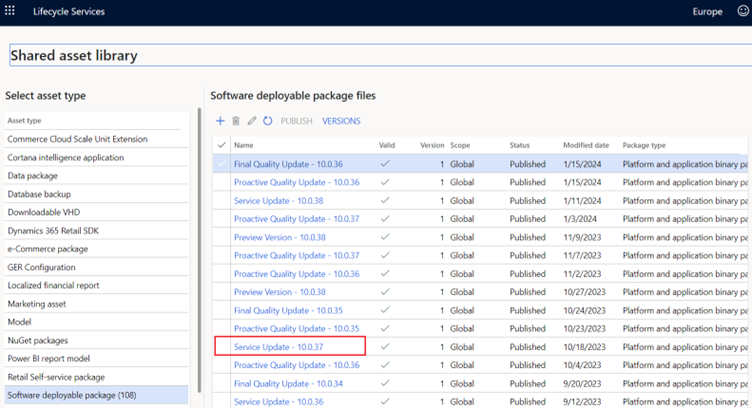
- Manually download the 10.0.37 service update (or any more recent service update) to your development machine. Once downloaded unblock and extract the the service update to a directory of your choosing. In my case I chose the C:\Temp folder.
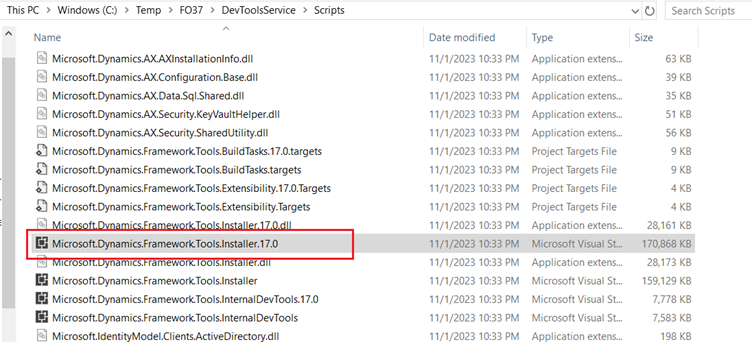
- The DevTools folder can then be found in the DevToolsService/Scrips folder. Within this folder you will find a VS Extension installer called “Microsoft.Dynamics.Framework.Tools.Installer.17.0”. This is the installer for the 64-bit version of the D365 F&O development tools which is compatible with VS 2022. Once VS 2022 is fully installed, run this installer and the development tools will start start to install. Upon completion, it is suggested to restart the VM in order for the changes to take affect.
- At this point, the D365 F&O Extension should be ready to use in VS 2022.
After some time, a strange issue was being encountered. The following exception would constantly be thrown when an existing project is modified (element added/removed) or a new project is created:
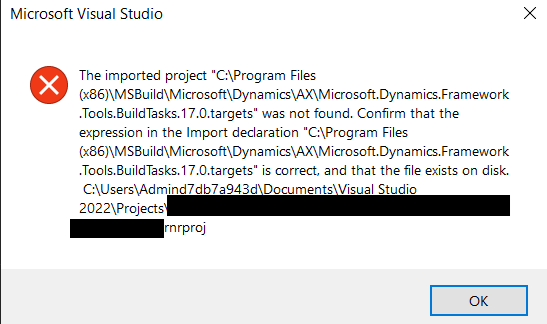
These target files are required by projects used in VS 2022. In order to resolve this issue, copy all the files that end with 17.0.targets from DevToolsService\Scripts (from the previously extracted F&O service update folder) to C:\Program Files (x86)\MSBuild\Microsoft\Dynamics\AX\.
Once these files are copied, the issue should be resolved and the D365 F&O extension can be used.
 d365techtips
Leave a comment